00. Installation
Overview
The document that introduce how to install Python and setting Python at the first place.
Process
Select the version
When selecting a Python version, consider the following factors:
-
See the status of Python: https://devguide.python.org/versions/#versions
-
The workloads that you want to develop: build web applications, build machine models, run analytics, etc.
-
The minimum requirements of your system: CPU, memory, disk, etc.
-
The maximum requirements for dependencies packages.
For my 2-cents recommendation, stable with 3.9.x version and 3.12.x at the moment (as of 2022-11-25).
Download Python release
[1] Go to Python download portal to oversee the Python releases
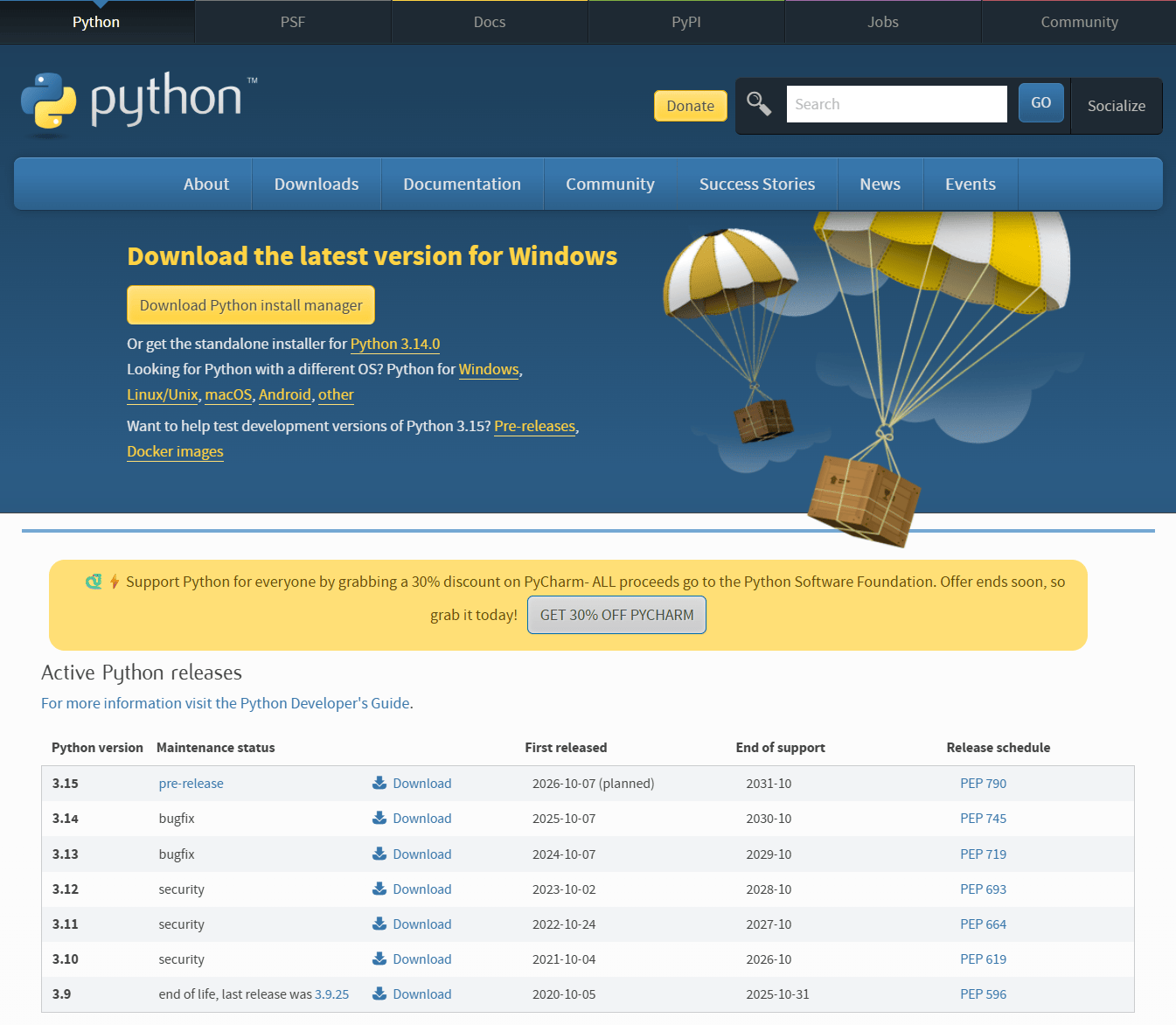
[2] Based on the selection to specific version and platforms (one of MacOS, Windows, Linux), download the Python installer
For example of Python 3-12-10 you will see the following tables. See: https://www.python.org/downloads/release/python-31210/
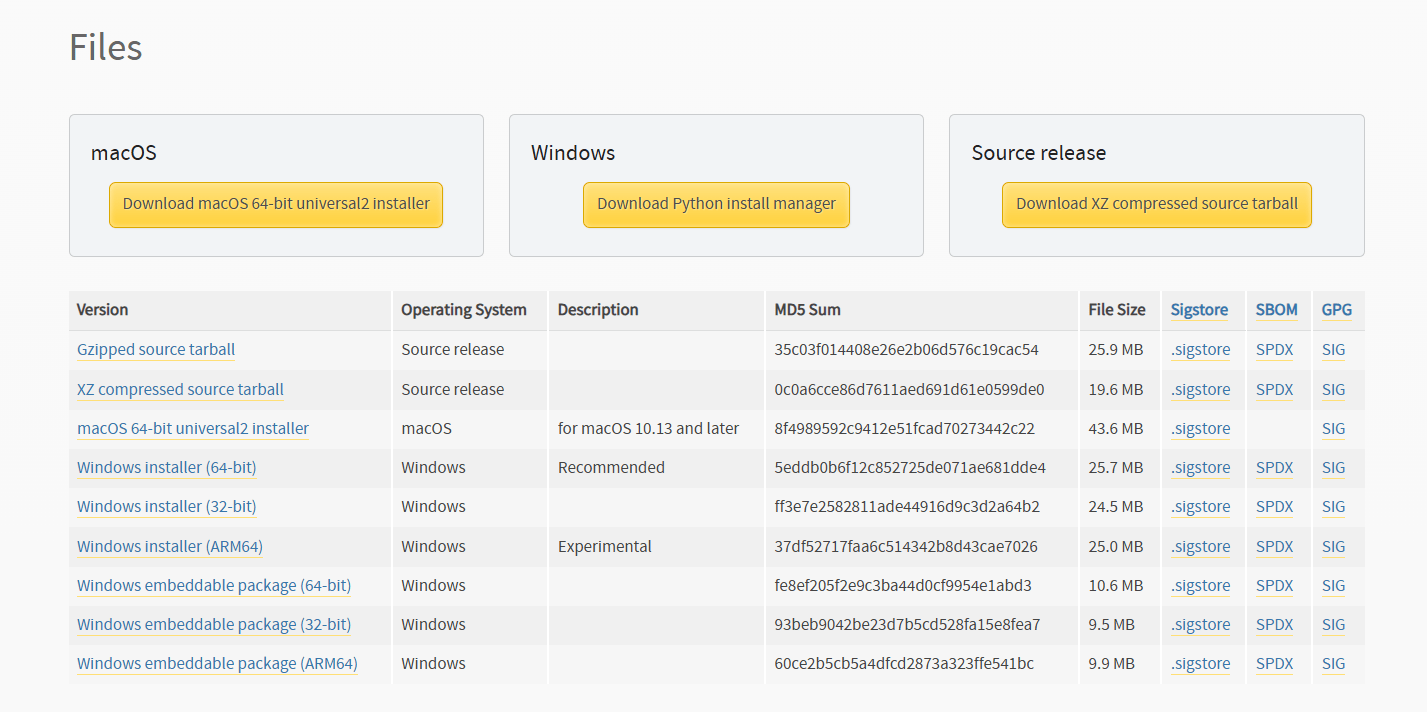
[3] Install Python by using Installer
CMD opens Windows Store when I type 'python'
Action: Use the Windows search bar to find "Manage app execution aliases". There should be two aliases for Python. Unselect them, and this will allow the usual Python aliases "python" and "python3". See the image below.
Setting PATH for Python
Using this keyword How to set the path and environment variables in Windows to search and there are a lot of suggestion tutorial to follow
Use one of download method
If you using Python Launcher for Windows, it settings differents Python path on your machine.
Even you setting the PATH, the Python still not change to the want Python version
Check if
This is time you make sure to use one method only.
If you want to select the options, removed the Launcher in Control Panel > Programs > Uninstall ... progress.
There is required to refresh your machine after this to refresh session
Note
Read through: https://docs.python.org/3/using/windows.html
Setting PATH
Make sure you have required admin previledges in your laptop/computer
Configure Python in VSCode
Please read through VSC Python tutorial
Then, setting Interpreter by using Ctrl+Shift+P then typing Python: Select Interpreter and choose the Path
Set up package manager with uv
uv is good at managing Python packages and recommend to use it.
You can still using pip as the default one.
Set virtual environments
Vitural environment is the isolated environment that contains a copy of Python and its dependencies.
For the development, using virtual environments is a good practice and helps to keep the development environment clean.
To create a fresh environment, run:
# Set
uv venv --seed venv

# Activate
source env/bin/activate

# Upgrade backend
uv pip install --upgrade pip setuptools wheel;

# Install dependencies
uv pip install -r requirements.txt;